
Your first automation should be small enough to explain in one sentence: when a new practice request appears in a spreadsheet, send a clearly labelled notification to a private test channel.
This guide gives you a safe project brief and a testing method. The example uses Google Sheets and Make, with a private Slack channel as the destination. Keep real customers and public channels out of the practice project.
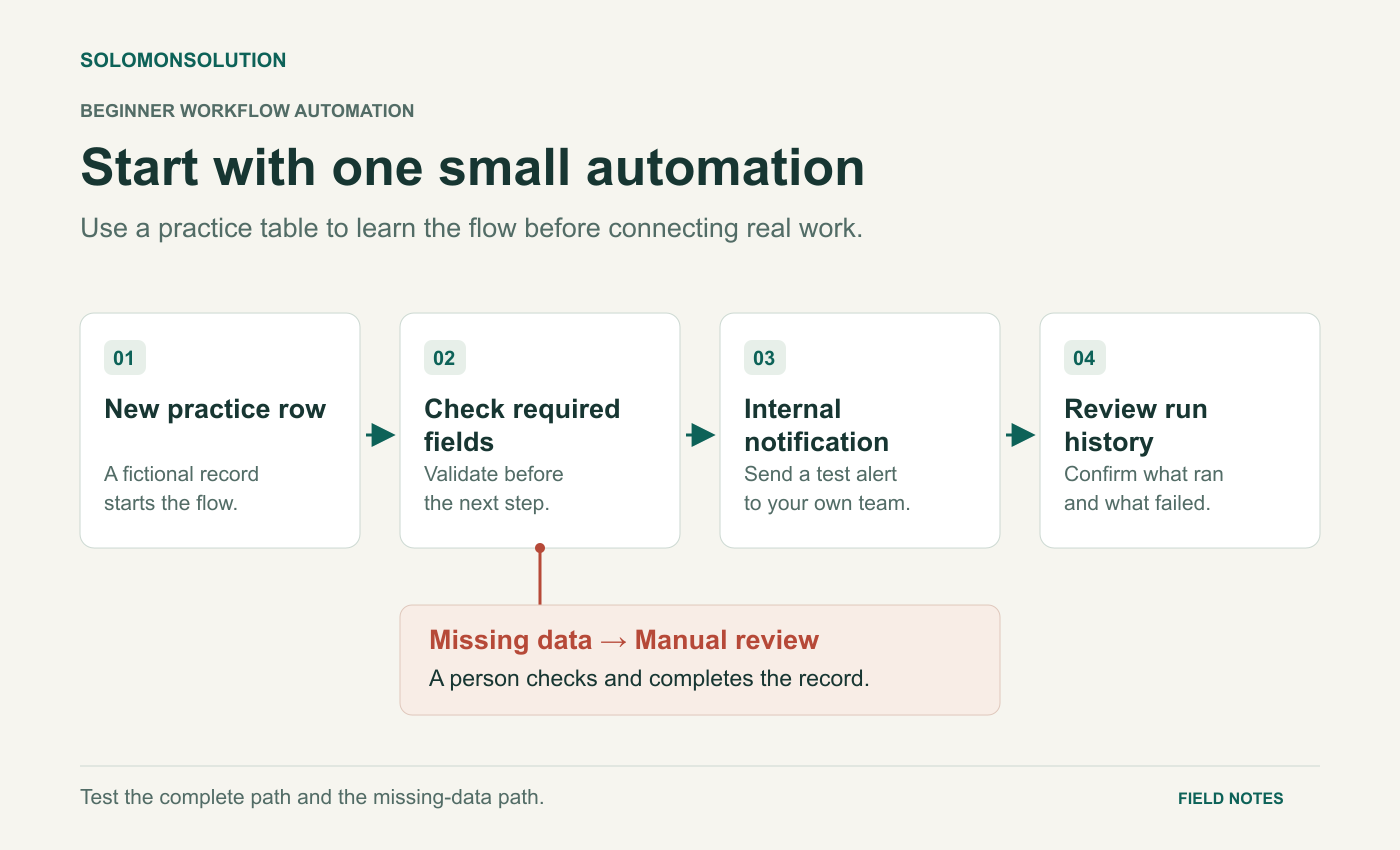
Diagram text description
A new row in a practice table starts the workflow. Check that all required fields exist. When the fields are complete, send an internal notification and review the run history to confirm what happened. If data is missing, stop the automated path and manually inspect the record. Test both paths with fictional records before using real work.
1. Define the workflow before connecting accounts
Write the trigger, required information, output, and owner. For this exercise, the trigger is a new row in a dedicated practice sheet. The output is an internal notification containing a request ID, a brief summary, and a due date. The owner is you.
Make calls an automated workflow a scenario. Its official first-scenario guide uses the same basic pattern of monitoring new Google Sheets entries and notifying a Slack channel. Use that guide for the current account-connection and module setup screens. Follow Make’s first-scenario guide.
Set a boundary: a notification asks a person to review a request. It does not approve the request, send a customer response, or guarantee that work has started. Keeping that distinction visible makes the output useful.
Check what permissions the connections request and what your current plan permits before proceeding. Use a sheet and channel created for practice. Name the workflow clearly so you can identify it later.
2. Give the workflow predictable practice data
Create columns named Request ID, Summary, Due date, and Status. Keep the header row stable. Add invented rows with no personal information. Decide on a single date format and write down which fields are mandatory.
Request ID: DEMO-001
Summary: Prepare the workshop agenda
Due date: 2026-11-05
Status: New
The ID helps you match a notification to its source row. It also lets you recognise repeated output during testing. Do not treat the ID alone as duplicate protection; preventing duplicate actions requires additional design and testing.
Prepare a complete row, a row with a missing summary, and a row with an unusually long summary. Keep a separate test log where you will record what you expected and what actually happened.
3. Build the shortest useful path
Add the spreadsheet trigger and the notification action. Select the practice sheet and private destination. Inspect a sample trigger result before mapping fields so you know which values are available.
Mapping connects a value from the source to a destination field. For example, place the source Request ID and Summary into the notification text. Make’s mapping documentation explains how to inspect a module’s input and output bundles. Read the mapping guide.
Use an explicit message format such as “PRACTICE REQUEST — DEMO-001: Prepare the workshop agenda. Due: 2026-11-05. Review the practice sheet.” A person should recognise the test context and the action needed without opening several tools.
Add a filter that requires the ID and summary before the notification step. In Make, filters pass data that meets their conditions; data that fails a filter stops on that path. A filter does not automatically create a review queue. For this first exercise, record rejected rows in your test log and review them manually. See how Make filters work.
4. Test the uncomfortable cases too
Run the scenario manually and inspect the result before scheduling it. Introduce each test case deliberately, following the trigger’s starting-point settings, so you know which rows it is meant to process.
| Test | Expected result | Evidence to record |
|---|---|---|
| Complete new row | One correctly formatted test notification | Request ID and actual destination |
| Missing summary | Stops at the required-field check | Filter result and manual review note |
| Long summary | Readable output or a documented formatting issue | Notification preview |
| Repeated manual run | Observed behaviour is understood | Whether the same ID appears again |
Do not describe the workflow as reliable because one row succeeded. Verify the source values, the destination, and the number of outputs. If something fails, inspect the run details and identify the failed module before changing settings. Make maintains official guidance on errors and error handling. Use Make’s error-handling reference.
5. Decide when it should run
Scheduling controls when the scenario runs. Make documents on-demand runs and scheduled intervals, with minimum intervals depending on the plan. Keep practice runs manual until the test log matches your expectations. When you enable a schedule, record its frequency and check the first scheduled result. Review Make’s scheduling options.
Before you call the practice project finished
- The destination is private and unmistakably for testing.
- Required fields and rejected rows are accounted for.
- You inspected input, output, and repeated-run behaviour.
- You know how to stop the scenario.
- You recorded the schedule and who will review failures.
For a portfolio, share the workflow diagram, fictional input, sample output, and test log. Explain the limitations plainly. A small project with visible checks demonstrates more judgment than a large workflow that nobody knows how to monitor.